


mGuide WIN-2
1. Package Contents
|
Kit Component |
|
|---|---|
|
|
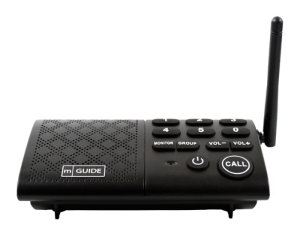
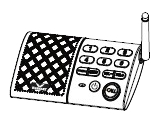
Intercom |
|
|
USB Cable |
|
|
Power Adapter |
|
|
User Manual |


2. Overview
mGuide WIN-2 is a wireless, portable, full-duplex, real-time intercom system providing clear audio, reliability, and secure communication. The intercom has a range of 400 meters in open terrain.
3. Making a Call in 3 Ways
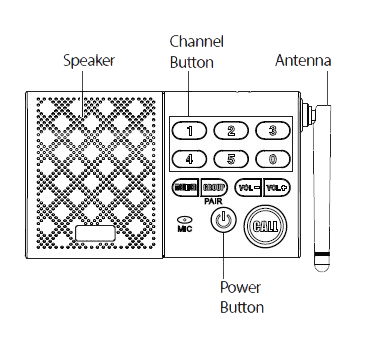
- Press the channel button, then press the call button.
- Press the call button, then press the channel button.
- Press and hold the channel button for 1 second.
4. Monitoring
For example: If you want to use Unit A to monitor Unit B.
On device B, press the "monitor" button, then press the channel button corresponding to device A.
5. Making a Group Broadcast
Press the group button to start broadcasting.
6. Power Button
- To turn on the device, press and hold the ⏻ button for 1 second; you will hear 1 beep.
- To turn off the device, press and hold the ⏻ button for 3 seconds; you will hear 3 beeps.
- To exit any mode, simply press the ⏻ button.
7. Volume Button
- Press VOL+ or VOL- to adjust the volume.
- To change the ringtone, press and hold the VOL+ button, then select the ringtone you like; you have 8 melodies to choose from.
8. Pairing
The intercom is ready for use. If you want to add additional units or re-pair all your units, you can follow the steps below.
Example: You already have 4 units in your intercom system and want to add one more.
- Select any unit of your intercom system (Unit A).
- Press and hold the group (Broadcast) button on device A until you hear 1 beep, then press the channel button you want to assign to the additional device. When the channel button starts flashing, device A is ready for pairing.
- Press and hold the group (Broadcast) button on the additional device (Unit B) until you hear 1 beep. When you hear two subsequent beeps, it means that device B has been successfully connected to the system.
⚠ Note
Distributing one channel to multiple units may cause system failure.
9. Troubleshooting
The intercom will not turn on.
- Are the power adapter and USB cable correctly connected?
Cannot communicate with other intercoms.
- Check if the intercom has been successfully paired.
- Check the reception distance between intercoms – the devices may be out of range.
The intercom sound is too quiet.
- Make sure the intercom volume has been increased sufficiently.
- Try to be closer to the microphone when speaking.
The intercom does not achieve the expected transmission range.
- Keep the intercom away from metal objects and other sources of interference.
Noise and howling are heard from the intercom.
- Perhaps two intercoms are too close to each other – try to move them apart.
- Some electrical devices (e.g., microwave oven, mobile phone, or other radio devices) may interfere with the intercom – try changing its position.
- If the problem is not resolved, please contact us for technical assistance.
10. Warnings
The following tips will help you use your intercom without problems for many years.
- Protect the stations from getting wet, as they are not waterproof.
- Keep the intercom station in a controlled environment. Avoid extreme temperatures.
- Handle the intercom carefully. Do not drop, throw, or mishandle the intercom stations.
- Keep the stations clean, free from dust and dirt, as this can damage sensitive electronics.
- Do not use chemicals or solvents for cleaning. Use a damp cloth to clean the stations.
- Modifying or tampering with the internal components of the station may cause it to malfunction and will also void the warranty.
11. Technical Specification
|
Parameter |
Value |
|---|---|
|
Power Adapter |
5V/1A |
|
Wireless Transmission Range |
400 meters in open space |
|
Wireless Transmission Frequency |
433 MHz |
|
Wireless Transmission Power |
≤ 0.5 W |
|
Operating Temperature |
-20°C to +60°C (-4°F to 140°F) |